1: R/Quarto intro, projects, packages, getting help, functions, and vectors
BSTA 526: R Programming for Health Data Science
Your name here - update this!!!!
OHSU-PSU School of Public Health
2026-01-08
0.1 Before you get started
- Please save a copy of this as
part01_b526_YOURNAMEorINITIALS.qmdand work from that.- This way, you’ll have the original as a reference just in case.
- Also, the first time you try something, try to type out the answer rather than copying and pasting.
- It will help you understand what’s going on, because it forces you to read the code.
- However, if you find yourself getting too in the weeds with typing during class, copying and pasting works too! Practice typing on your own.
0.2 Learning Objectives
By the end of this session, you should be able to:
- Work within the RStudio interface to run R code in a Quarto document
- Understand basic R syntax to use functions and assign values to objects
- Create and manipulate vectors and understand how R deals with missing data
- Install and load R packages
1 Introduction to R
R Intro from BSTA 511/611:
1.1 RStudio anatomy
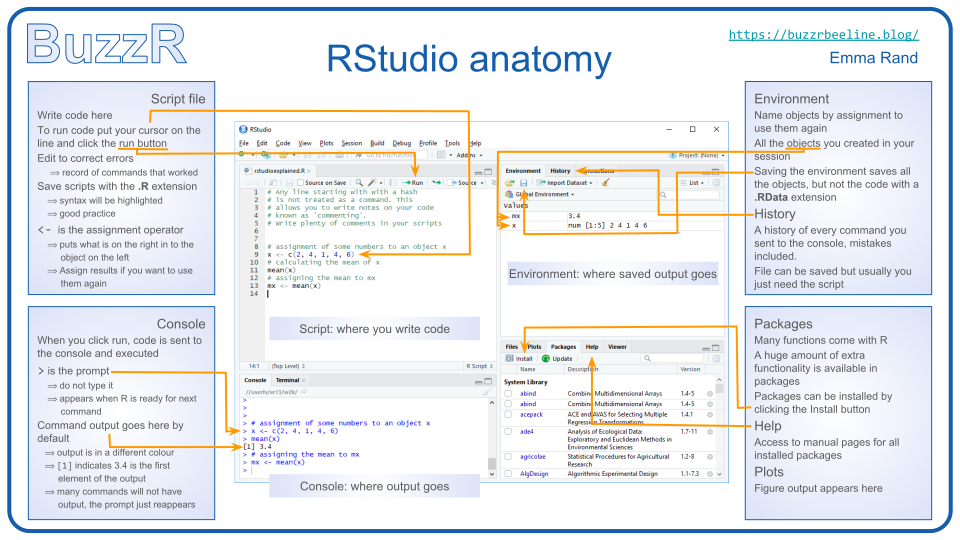
Read more about RStudio’s layout in Section 3.4 of “Getting Used to R, RStudio, and R Markdown” (Ismay and Kennedy 2016)
A good reference built into RStudio is
Help -> Cheatsheets -> RStudio IDE cheat sheet
1.2 Customizing RStudio
1.3 RStudio Projects
We will be using RStudio projects.
See Projects in RStudio webpage
Open RStudio by double clicking on the .Rproj file in the main OneDrive folder (
BSTA_526_W26_class_materials_public.Rproj)
1.3.1 Creating projects
Ted Laderas’s short video on creating new projects: https://youtu.be/D22THnoPA6w
2 Quarto (.qmd)
- See intro to Quarto from BSTA 511/611 Week 1
- Can view slides as html, pdf, or “continuous” webpage.
2.1 Create a Quarto file
- See BSTA 511/611 Day 1 section on Create a Quarto file.
2.2 Markdown for “word processing”
- The Quarto (qmd) document uses markdown language for text outside of code chunks.
- Some markdown resources:
- BSTA 511/611 Day 1 notes on markdown
- BERD workshop slides on how to do Markdown and other formatting in Quarto files.
- Official Quarto webpage on markdown basics
2.3 Code chunks
The grey box below is a code chunk:
- Everything that starts with a
#is called a comment and is not code that runs. It is useful for making notes for yourself. - Below the comment is the actual code.
- How do we run the code?
2.3.1 More on code chunks
- BERD workshop slides on code chunks.
2.4 Useful keyboard shortcuts (Tools → Keyboard Shortcuts Help)
| action | mac | windows/linux |
|---|---|---|
| Run code in qmd or script | cmd + enter | ctrl + enter |
| Add code chunk | cmd + option + i | ctrl + alt + i |
<- |
option + - | alt + - |
| interrupt currently running code | esc | esc |
| in console, go to previously run code | up/down | up/down |
%>% |
cmd + shift + m | ctrl + shift + m |
| search files | cmd + shift + f | ctrl + shift + f |
| render qmd | cmd + shift + k | ctrl + shift + k |
| run entire code chunk | cmd + option + c | ctrl + alt + c |
| keyboard shortcut help | option + shift + k | alt + shift + k |
3 Getting Help
3.1 Using functions
Below is an example of an R function:
R functions can have multiple arguments
Do we have to “name” the arguments?
3.2 Help within RStudio
Learn more about the round() function with ?round:
- We can also type
?roundin the Console instead of including it in a code chunk.
You may notice that boxes pop up as you type. These represent RStudio’s attempts to guess what you’re typing and share additional options.
3.3 Help on the internet
There are many ways to get help. The more you learn how to get help, the easier your coding life will be. Here’s a list of options:
- Google “question + rcran” (i.e “hist rcran” or “make a boxplot ggplot”)
- Google error in quotes (i.e. “Evaluation error: invalid type (closure) for variable ‘***’”)
- Search RStudio community (now called Posit)
- Search Stack Overflow #r tag
- Search github for your function name to see examples or search the error
- Use generative AI (ChatGPT, Perplexity, etc.)
Post a question somewhere friendly:
- RStudio community
- to pick on my friend/coworker Emile, an example
- R for Data Science Online Learning Community - join the slack channel
#rstatson social media platforms
3.4 Challenge 1
- What does the function
histdo?- What are its main arguments?
- How did you determine this?
- Tricky bonus: what about
+, which is actually a function?
4 Common errors
4.1 “Object not found”
This happens when text is entered for a non-existent variable (object)
Can be due to missing quotes
or misspellings (R is case-sensitive)!
4.2 Incomplete commands
- In the console:
- When the console is waiting for a new command, the prompt line begins with >
- If the console prompt is +, then a previous command is incomplete
- You can finish typing the command in the console window
- If stressed and confused, press ESC many times
- When the console is waiting for a new command, the prompt line begins with >
- In a code chunk:
- R will let you know there is an error with a red circle containing a white X (see below in the code file).
- Note that all code chunks below this one will still have the red error circles until you fix the code.
- What happens if you try to run the code below?
- R will let you know there is an error with a red circle containing a white X (see below in the code file).
Change #| eval: false above to #| eval: true after you fix the code error.
4.3 “could not find function”
- This can happen when you are calling a function but haven’t loaded the package that it “lives” in.
- For example, the function
day()being used below is from thelubridatepackage.- What error do we get when we run the code?
How do we fix this code?
[1] 9# or load the package first (preferably at beginning of script)
library(lubridate)
day("2025-01-09")[1] 9Or, maybe there was a misspelling…
5 Assigning objects with <-
<- is the primary assignment operator in R
5.1 Naming conventions in R
- Some naming conventions in R
- Objects cannot start with a number
- Object names are case sensitive
- No spaces in object names
- Now that the object has been assigned, we can reference that object by running its name:
5.2 Object as a variables
- We can also use the object as a variable:
- We can create a new object (variable) based on the existing one:
- Note that the code above only saves the value for
weight_lb, but it doesn’t show us what the value is. - To see what the value is, you can
- Check the Environment tab (this is not reproducible though)
- Add
()around the whole line of code to also see the value:
- Below we assign a new value to
weight_kg- Did this change the value of
weight_lb?
- Did this change the value of
5.3 Removing objects
- You can clear the entire environment using the button at the top of the Environment panel with a picture of a broom.
- This may seem extreme, but don’t worry! We can re-create all the work we’ve already done by running each line of code again.
- To remove an individual object, use the
remove()function:
5.4 Challenge 2
What is the value of each item at each step? (Hint, you can see the value of an object by typing in the name of the object, such as with the mass line below.)
[1] 47.5Make your answers here:
6 Vectors
6.1 Creating vectors
cis for combine or concatenate
6.2 Learning things about vectors
6.3 Character vectors
In the example above, each word within the vector is encased in quotation marks, indicating these are character data, rather than object names.
6.4 Challenge 3
Please answer the following questions about organs:
- How many values are in
organs? - What type of object is
organs?
Answers here:
7 Object (data) types and Vectors
- character: sometimes referred to as string data, tend to be surrounded by quotes
- numeric: real numbers (decimals), sometimes referred to as “double”
- integer: a subset of numeric in which numbers are stored as integers
- logical: Boolean data (
TRUEandFALSE) - dates: can save data as seconds, hours, days, months, years, or combinations thereof. Recommend lubridate package for this.
- complex: complex numbers with real and imaginary parts (e.g., 1 + 4i)
- raw: bytes of data (machine readable, but not human readable)
7.1 Challenge 4
- R tends to handle interpreting data types in the background of most operations.
- The following code is designed to cause some unexpected results in R.
- What is unusual about each of the following objects?
8 Manipulating vectors
8.1 Adding values to vectors
8.2 Extracting (or excluding) values from vectors
9 Missing data
NAindicates a missing value in R.NAis not a character!!!
9.1 Calculations with missing data
- What happens when we try to calculate the mean or max of a vector with missing data?
- How do we fix this?
- Or, can use
na.omit- be careful with this!!
[1] 2 4 4 6
attr(,"na.action")
[1] 4
attr(,"class")
[1] "omit"9.2 Challenge 5
Complete the following tasks after creating this vector (Note: there are multiple solutions):
- Remove NAs on
more_heights(assign it to the objectmore_heights_complete) - Calculate the
median()ofmore_heights_complete
10 Vectorization
- Most of R’s functions are “vectorized”
- This means that the function will operate on all elements of a vector without needing to use other advanced programming tools such as for loops (more on that later).
10.1 Vectorization examples
We can see this when we try to add vectors together:
All mathematical and logical operators are vectorized functions:
[1] 49 81 121 169[1] 8 10 12 14[1] FALSE TRUE FALSE FALSE[1] FALSE FALSE TRUE TRUE[1] 0.1666667 0.2857143 0.3750000 0.4444444But other common functions are as well:
11 R packages
- Packages are add-ons that contain functions and/or data.
- Usually the functions in a package are related to a certain type of data task or analysis method.
- You only need to install packages once.
- You need to “load” the packages that you need for your code
- every time you start R AND
- you need to have the code to load them at the top of your qmd or R script.
11.1 Installing packages
From BSTA 511/611: R packages
11.2 Loading packages: library() or pacman::p_load()
You can load packages with the
library()function orp_load()function in thepacmanpackage.
The following code loads two packages, though the
tidyversepackage is actually a suite of many packages.- This code assumes you have already installed the packages!!!
I encourage you to start using pacman::p_load() in BSTA 526 instead of library().
12 Wrapping up
Today we covered
- R/RStudio and Quarto
- RStudio projects
- Markdown & formatting html files
- Code chunks
- Getting help
- Using functions
- Common R errors
- Working with objects (vectors) and determining data types
- Vectors & vectorization
- Missing data
- R Packages
13 Post Class Survey
- Please fill out the post-class survey.
- Your responses are anonymous in that I separate your names from the survey answers before compiling/reading.
14 Acknowledgements
- This Intro to R was heavily adapted from the BSTA 504 Winter 2023 course, taught by Jessica Minnier. I made minor modifications; primarily to update the material from RMarkdown to Quarto, and adding links to an introduction to Quarto from BSTA 511/611.
- Minnier’s Acknowledgements:
- This intro to R was adapted from material from Kate Hertweck’s Intro to R course from http://fredhutch.io, the Intro to R OCTRI BERD course I taught with Meike Niederhausen, and of course, Ted Laderas’ 2021 materials.